
Website accessibility requires more than running an automated scan. While automated tools can identify many common accessibility issues, some barriers only become apparent when a person evaluates how a website works in practice.
To help teams take a more structured approach, GetWCAG introduces manual accessibility testing: a feature that helps accessibility leads, product teams, developers, agencies, and organizations evaluate accessibility criteria, record findings, and share results in a consistent format.
The feature supports WCAG 2.1 and WCAG 2.2 at conformance levels A and AA. Teams can evaluate individual pages or include representative URLs in a site-level test, document their testing methods, and export their results for further review.
In this article, we explain why manual testing matters, how the new feature works, and how to combine it with automated accessibility scans.
Why Automated Accessibility Scans Alone Aren’t Enough
Automated accessibility testing is an important part of maintaining an accessible website. It can help teams detect issues such as missing alternative text, certain color contrast problems, and incorrectly associated form labels.
Automated scans are also useful for checking pages regularly and identifying recurring problems across a website.
However, not every accessibility issue can be reliably detected by automated tools. Some require a person to interact with the interface, assess content, or interpret how a particular feature behaves.
For example:
- Keyboard accessibility: Can a visitor navigate the main menu, open dialogs, and reach interactive controls using only a keyboard?
- Screen reader experience: Are headings, form fields, error messages, and dynamic updates communicated meaningfully?
- Focus management: When a dialog opens or closes, does keyboard focus move to an appropriate location?
- Content clarity: Do instructions, link labels, and error messages make sense in context?
- Interaction and usability: Can people understand and complete a task without relying on visual cues alone?
Some of these checks can be partially automated, but evaluating the complete user experience often requires manual testing.
This is why an automated scan should not be treated as a complete accessibility evaluation. A clean scan does not necessarily mean that a website is accessible, and a high number of automated findings does not tell the whole story.
A more reliable approach combines automated checks with structured manual evaluation.
What Manual Accessibility Testing Adds to Your Workflow
Manual accessibility testing helps teams evaluate criteria that require human judgment and document what they observe.
Without a consistent process, manual evaluations can be difficult to repeat, compare, or share. Different testers may use different methods, omit important details, or record findings in separate documents and spreadsheets.
GetWCAG’s manual testing feature provides a structured way to manage this work.
1. A checklist based on WCAG criteria
The feature supports WCAG 2.1 and WCAG 2.2 at levels A and AA. Its checklist provides testing steps and W3C guidance for the relevant criteria.
This gives testers a reference point for evaluating accessibility requirements rather than relying entirely on personal notes or informal procedures.
For example, when evaluating keyboard accessibility, a tester can follow the relevant testing guidance, interact with the page, and record the observed result.
2. A record of how testing was performed
Accessibility results are more useful when teams understand the conditions under which an evaluation took place.
GetWCAG allows testers to record context such as:
- Tester
- Testing date
- Browsers used
- Devices used
- Assistive technology used
This information helps teams understand the scope of an evaluation and provides useful context when repeating tests or reviewing findings later.
For example, a team might document that a page was tested using a particular browser and screen reader combination. That record helps clarify what was evaluated without implying that every possible browser, device, or assistive technology combination was covered.
3. Clear results and supporting notes
Not every accessibility check produces a simple pass-or-fail answer. Some findings require additional investigation, and some criteria may not apply to a particular page or feature.
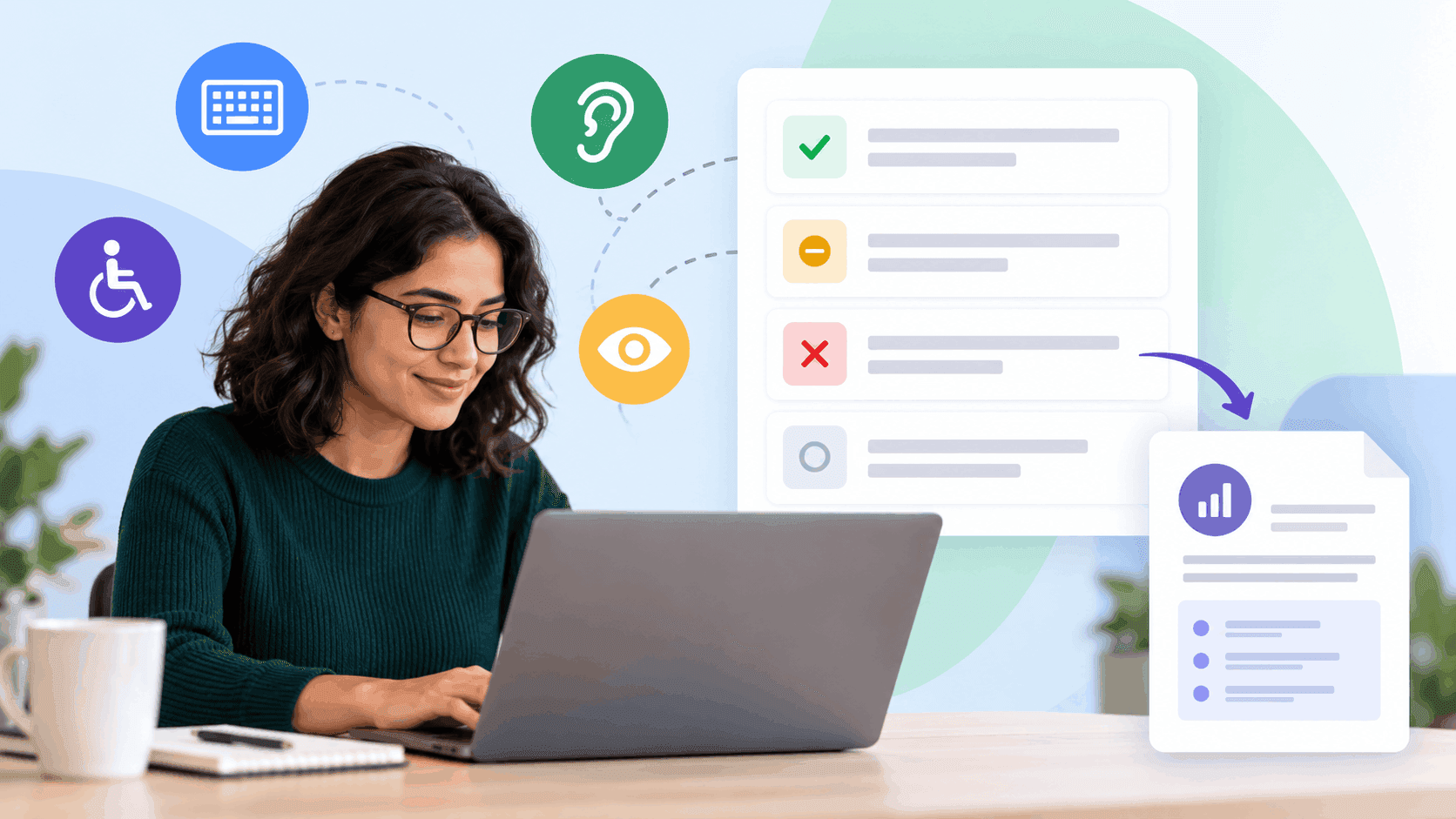
GetWCAG lets testers mark results as Pass, Partial, Fail, or Not applicable. Checks that have not yet been evaluated remain visible, making outstanding work easier to identify.
Testers can also add comments and identify affected sample pages. This helps teams explain why a result was recorded, point colleagues toward relevant examples, and provide more context for remediation.
4. Reports that support communication
Accessibility evaluations often involve several stakeholders, including developers, designers, accessibility specialists, project managers, clients, and organizational leadership.
GetWCAG supports exporting results as a PDF or a VPAT-style HTML Accessibility Conformance Report. Teams can also publish a shareable report snapshot.
These formats make it easier to communicate evaluation results, preserve a record of findings, and support conversations about accessibility improvements.
A report documents the evaluation performed; it does not, by itself, certify accessibility or guarantee compliance.
How GetWCAG Manual Accessibility Testing Works
The feature is designed to help teams move from selecting a testing scope to recording and sharing their findings.
Step 1: Choose the pages to evaluate
Start by deciding whether to test a single page or conduct a site-level evaluation.
For a focused assessment, you can test one page, such as a sign-in screen, contact form, or product detail page.
For a broader evaluation, you can include up to 50 representative URLs in a site-level test. Choose pages that reflect important templates, components, and user journeys across the website.
For example, an organization might include its homepage, navigation, search results, account registration, contact form, and other representative pages.
Selecting representative URLs helps define the scope of the evaluation. It does not mean that every page or interaction on the website has been tested.
Step 2: Use the WCAG checklist
Work through the available checklist using the testing steps and W3C guidance provided for the criteria.
The feature supports WCAG 2.1 and WCAG 2.2 at levels A and AA, allowing teams to organize their evaluation around the relevant accessibility requirements.
Follow the guidance, interact with the page as needed, and use your observations to determine the appropriate result.
Where a criterion requires specialized knowledge or interpretation, use qualified accessibility expertise to support the evaluation.
Step 3: Record the testing context
Document who performed the evaluation, when it took place, and the browsers, devices, and assistive technology used.
This step is particularly useful for teams working across multiple environments or handing findings between specialists and developers.
Consider a checkout form that behaves differently with a keyboard than with a mouse. Recording the testing environment helps the team understand the conditions in which the issue was observed.
Good documentation makes findings easier to investigate and retest.
Step 4: Evaluate each check and record the result
For each checklist item, select the appropriate status:
- Pass: The check passed based on the evaluation performed.
- Partial: The check was only partially satisfied.
- Fail: The check did not pass the evaluation.
- Not applicable: The criterion does not apply to the evaluated scope.
If a check has not yet been evaluated, leave it unevaluated. It remains visible so the team can see that work is outstanding.
This distinction matters. An unevaluated criterion should not be mistaken for a passing result, and a partial result should not be presented as a complete pass.
Step 5: Add comments and identify affected pages
When recording a finding, include comments that explain what you observed and why it matters.
Where relevant, identify the affected sample pages to help developers locate the problem.
For example, a tester evaluating keyboard navigation might record that focus becomes difficult to track when a menu opens, add context about the observed behavior, and identify the page where the issue occurs.
Specific notes are more useful than a status alone. They help the team understand the finding and determine what to investigate next.
Step 6: Export or share the results
When the evaluation is ready to share, choose the format that best supports your workflow.
GetWCAG lets teams:
- Export results as a PDF.
- Export a VPAT-style HTML Accessibility Conformance Report.
- Publish a shareable report snapshot.
A PDF can be useful for project documentation and internal reviews. An HTML report can support structured communication of conformance findings. A shareable snapshot can help stakeholders review the documented evaluation.
Before distributing a report, review its scope, results, comments, and unevaluated checks to ensure that readers understand what was assessed and what remains to be done.
How to Combine Manual and Automated Accessibility Testing
Manual and automated accessibility testing are complementary approaches. Each helps identify different types of problems, and neither should be treated as a complete replacement for the other.
A practical accessibility workflow uses automation for repeatable checks and manual testing for issues that require interaction, interpretation, or human judgment.
Here is one way to bring them together.
1. Start with automated scans
Run automated scans to identify detectable accessibility issues across important pages.
Use the results to prioritize obvious problems, such as missing accessible names or certain contrast failures, and identify patterns that may affect multiple pages.
Automated testing can help teams cover more pages efficiently, but its results should be understood within the tool's detection capabilities.
2. Select representative pages for manual evaluation
Choose pages and user journeys that matter most to visitors and that reflect the website's different templates and interactions.
Include areas such as navigation, forms, dialogs, search, account flows, and other interactive components where relevant.
Use GetWCAG's checklist to organize the evaluation and record the scope of the test.
3. Test interactions and assistive technology experiences
Manually evaluate aspects that automation cannot fully assess.
Depending on the website and evaluation scope, this may include keyboard navigation, focus behavior, screen reader output, form error handling, and the clarity of instructions.
Document the actual behavior observed rather than relying solely on automated results.
4. Record findings and assign follow-up work
Use the manual test results and automated findings together to build a clearer picture of the website's accessibility.
For manual evaluations, record the relevant status, comments, and affected sample pages in GetWCAG. Use the combined findings to help the team decide which issues need investigation and remediation.
Keep the distinction between detected issues, manually observed issues, and checks that have not yet been evaluated.
5. Retest after changes
Once developers make improvements, run relevant automated checks again and repeat manual tests for affected interactions and criteria.
For example, fixing a navigation menu's keyboard behavior may require more than rerunning an automated scan. A tester should also navigate the menu using a keyboard and verify that focus and interaction work as expected.
Record the results of the follow-up evaluation so the team can understand what changed and whether further work is needed.
6. Keep the process ongoing
Accessibility is not a one-time task. New components, design changes, content updates, and software releases can introduce new barriers.
Combining recurring automated scans with planned manual evaluations helps teams make accessibility part of their development and maintenance process.
The right testing scope and frequency depend on the website, its functionality, the risks involved, and the needs of its users.
Who Can Benefit from GetWCAG Manual Testing?
The feature can support different teams involved in website accessibility.
- Accessibility leads can organize evaluations, document the testing scope, and communicate findings to stakeholders.
- Product and engineering teams can use comments and affected sample pages to investigate problems and guide remediation.
- Digital agencies and consultants can document evaluations performed for client websites and share results in structured report formats.
- Organizations responsible for accessibility can maintain records of evaluations and identify checks that still need attention.
Across these use cases, the central benefit is a more structured way to record what was evaluated, what was found, and what remains outstanding.
The feature supports accessibility assessment and reporting, but the quality of the evaluation still depends on the testing performed, the scope selected, and the expertise applied.
Build a More Complete Accessibility Testing Process
Automated scans are valuable for finding detectable issues quickly and consistently. Manual accessibility testing adds the human evaluation needed to understand how people interact with a website and whether its features work as intended.
GetWCAG's new manual accessibility testing feature brings these activities into a more structured workflow. With WCAG 2.1 and 2.2 support at levels A and AA, representative URL selection, guided checklists, documented testing context, flexible result statuses, comments, and shareable reports, teams have a practical way to organize and communicate their evaluations.
The goal is not to replace expert judgment or promise perfect accessibility. It is to make testing more systematic, findings more understandable, and follow-up work easier to manage.
Ready to take a more structured approach to website accessibility? Try GetWCAG's manual accessibility testing feature and start documenting your evaluations alongside your automated scans.